I’ve recently fallen into trouble when I wanted to setup a new workflow in Logic Apps. The scenario was pretty simple. Do something when a new Item is created in an on-prem SQL Server data table. This scenario was one of the basic methods learning materials was covering so I’ve started the creation of the workflow assuming it is going to be a quick win :)… It wasn’t 😦
First of all when tried to set up the When a new item is created trigger in the workflow it failed. I could find the object itself, but when I updated or created a record, nothing happened. The trigger was not fired. In this point I went to Microsoft documentation and carefully read the full article on the SQL Server connector. Unfortunately I’ve quickly found the issues which I knew I cannot resolve in our enterprise environment.
https://learn.microsoft.com/en-us/connectors/sql/

First of all the When new item is created trigger is based on the IDENTITY column. This column should be within the table I’d like to use. This is not the case with our data tables and I cannot ask for adding it. Then I’ve tried to use the When an item is updated trigger – that is theoretically includes creation as well – but I couldn’t succeed. The documentation showed that for this trigger we need ROWVERSION column which we have in all tables and the column is actively used, but still the trigger was not initiated. Then I found point 3 that states if another triggers are set in the source, neither of the trigger in Logic Apps will work. That’s it…
So how can I override this if I cannot use the native triggers? With Recurrence trigger, yeah! I’ve set up a recurrence trigger for every 5 mins and the plan is to query the SQL server table to look at the items updated in that 5 mins period. Let’s see how it can be achieved:
Step 1: Setting up the trigger
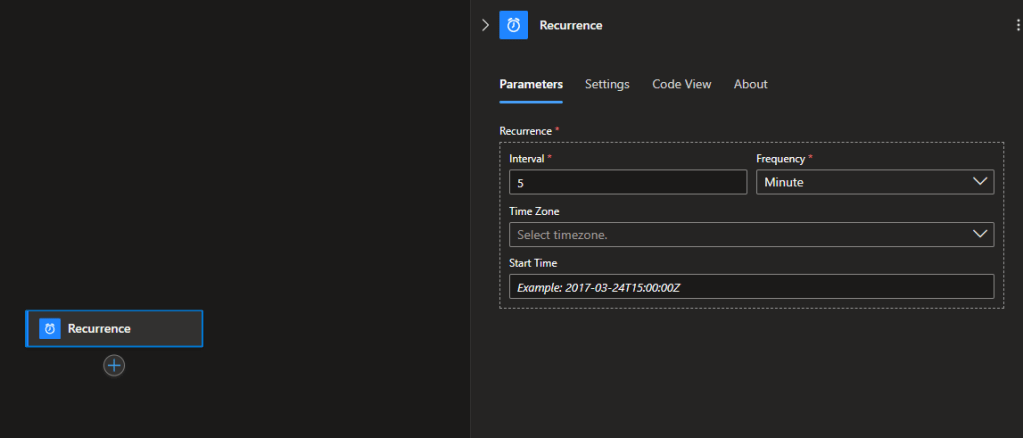
Added the Recurrence trigger and set it to 5 mins
Step 2: setting up the baseline time that’s 5 mins back from now and convert it to our time zone from UTC.
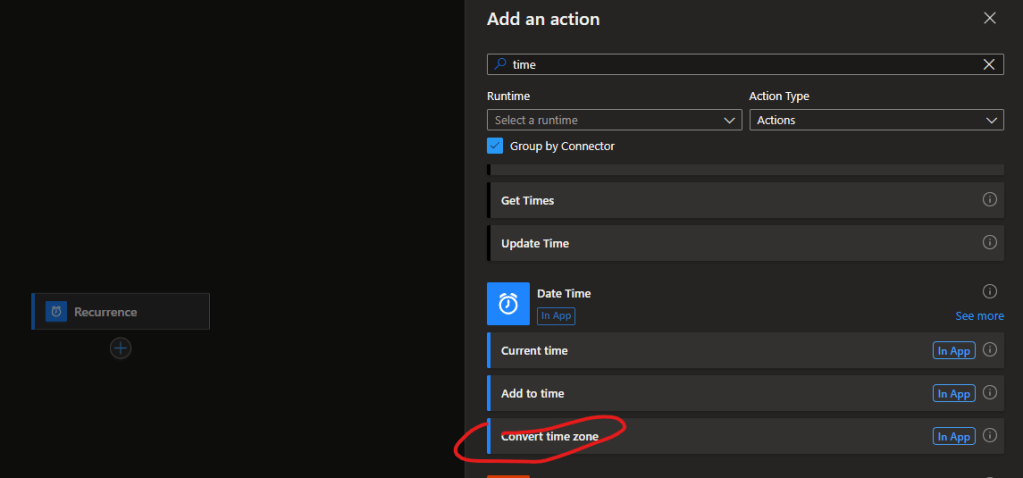
I’m choosing the Convert time zone action for this with the following settings:
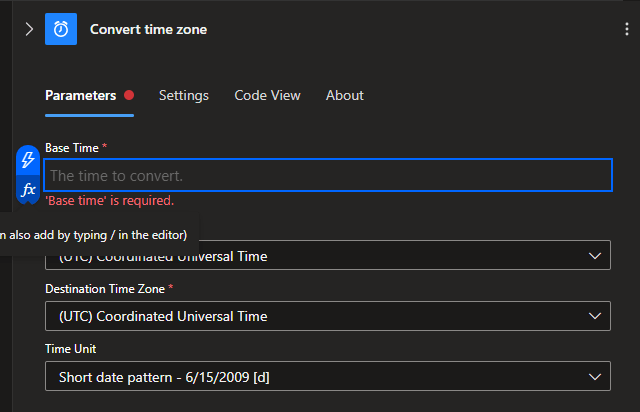
Selecting the “fx” for Base Time and entered utcnow() formula, here we can also add the 5 mins back from now, so the final formula will be addMinutes(utcNow(),-5). Add it.
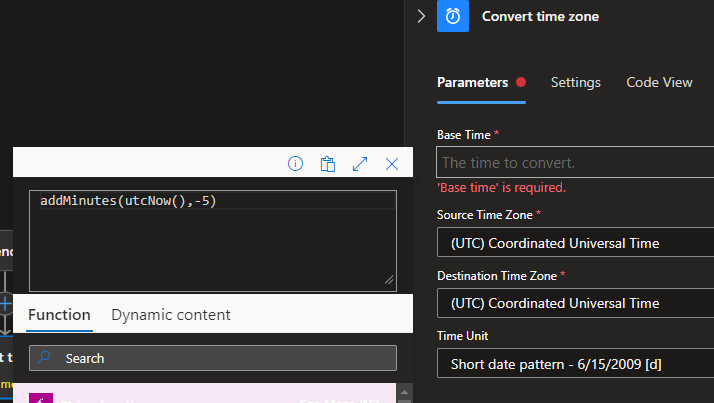
Set the Destination Time Zone and the Time Unit as needed:

Step 3: Get rows for the last 5 mins
I’m using the SQL Server connector for the exercise, and using the TESTPART03 as a test item:
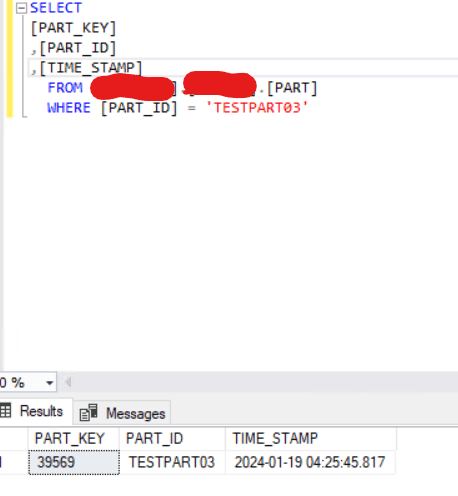
Back to Logic Apps the Action:

You should fill the Server Name, the Database Name and the Table Name to select the necessary object. You also need to switch or create the proper connection on the bottom of the page with the associated credentials to the database.
Then we need to add the Filter Query parameter in the Advance Parameters section:

This is an ODATA query so we need to define to search for items greater than our timestamp we created above. I’m adding the TIME_STAMP field that is showing the modification time and “ge” that stands for greater than or equal to and adding the Converted Time created above. Based how documentation defines the parameter:


Now we can Save the workflow, go back on Overview screen. Modify the TESTPART03 and then Run the workflow. Unfortunately I received an error for the Get Rows action:

{ “status”: 400, “message”: “The DateTimeOffset text ‘2024-01-24T05:33:29’ should be in format ‘yyyy-mm-ddThh:mm:ss(‘.’s+)?(zzzzzz)?’ and each field value is within valid range.\r\n inner exception: The DateTimeOffset text ‘2024-01-24T05:33:29’ should be in format ‘yyyy-mm-ddThh:mm:ss(‘.’s+)?(zzzzzz)?’ and each field value is within valid range.\r\n inner exception: The time zone information is missing on the DateTimeOffset value ‘2024-01-24T05:33:29’. A DateTimeOffset value must contain the time zone information.\r\nclientRequestId: 7f57373a-b867-40b7-82f5-f937bf9c0d4e”, “error”: { “message”: “The DateTimeOffset text ‘2024-01-24T05:33:29’ should be in format ‘yyyy-mm-ddThh:mm:ss(‘.’s+)?(zzzzzz)?’ and each field value is within valid range.\r\n inner exception: The DateTimeOffset text ‘2024-01-24T05:33:29’ should be in format ‘yyyy-mm-ddThh:mm:ss(‘.’s+)?(zzzzzz)?’ and each field value is within valid range.\r\n inner exception: The time zone information is missing on the DateTimeOffset value ‘2024-01-24T05:33:29’. A DateTimeOffset value must contain the time zone information.” }, “source”: “sql-cc.azconn-cc-001.p.azurewebsites.net” }
Ok, searched for some solution and found a workaround which seemed to be doable:
https://stackoverflow.com/questions/50281290/azure-logic-app-sql-get-rows-with-datetime-comparison
started to modify the filter query that became like this:

Saved, again modified the Item and Run the workflow. Again received the above message 😦 After several trial and reading I found that somehow Logic Apps ODATA functions – year, month, day, hour, minute, etc – somehow cannot handle the timestamp created with the previous step. So I had to find another workaround for this. Instead of using the year(Converted time) formula, I changed the format of the Converted time within the reference layer. Select the “fx” and use the formatDateTime function and add the appropriate format of the Converted time. for year it is yyyy, for month it is MM, day is dd, hour is hh, minute is mm, etc.
Save, Run again and this time 🙂
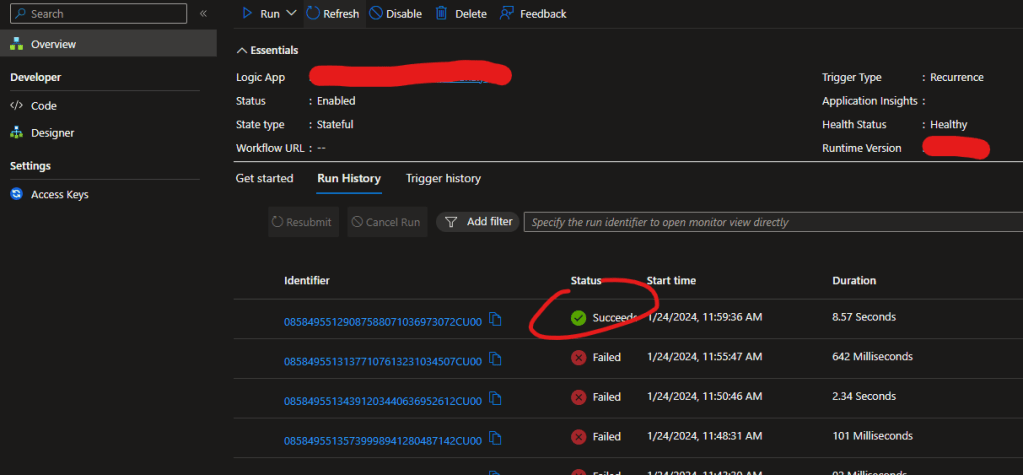
Succeed.
Also if I go into the details and check the output I see the TESTPART03 properly:

It was not easy but finally I could get there. If you have any better solutions, please share.

 Adam's Perspective on Data
Leave a comment