
As introduced in my other article I’m setting up dynamic pipelines to create sustainable and scalable flow for data integration. In this article I’m going to show you the first step for this, that is setting up the Control Table.
The Control Table is the place where you can manage which tables should be collected by the pipeline, what is the type of the tables – Dim or Fact – what is the frequency of the refreshment that is needed, what is the Schema in the source system, if historization is needed, etc. There can be multiple other attributes that might be needed for the specific workflow, even key columns, columns to exclude due to sensitivity, etc.
For our demo, I’ll setup the table to use the following attributes:
- TableName: this is the name of the table/sheet/object whatever, based on the data source, with that we can identify it.
- SCD2: if we want to create historization with an SCD2 historization type – that’s the most often type I’m using for historization
- RefreshRate: we will setup daily and hourly refresh rates here
- Type: Dim table or Fact table
The SQL code I’m using for this control table is the following:
CREATE TABLE [demo].[TablesforIngestion]
(
TableName VARCHAR(50)
,SCD2 VARCHAR(50)
,RefreshRate VARCHAR(50)
,Type VARCHAR(15)
)
WITH
(
DISTRIBUTION = ROUND_ROBIN
,HEAP
)
Now we have the table created, so the next step is to set up what we want to pull from the source. For that I’ve created a demo data source that is in the Excel file. This excel file has 4 pages:
- Item
- Customer
- Sales
- Cases
Out of that 4 for this Demo we will pull only 3, Item, Customer and Sales. Here is the code with that the Control Table can be filled:
DECLARE @TableName AS VARCHAR(50) = ‘Item’
DECLARE @SCD2 AS VARCHAR(50) = ‘Y’
DECLARE @RefreshRate AS VARCHAR(50) = ‘Daily’
DECLARE @Type AS VARCHAR(15) = ‘Dim’ –‘Dim’ or ‘Fact’
IF NOT EXISTS( SELECT * FROM [demo].[TablesforIngestion] where [TableName]=@TableName)
BEGIN
INSERT INTO [demo].[TablesforIngestion]
VALUES (@TableName, @SCD2, @RefreshRate, @Type )
END
Of course we should add each three tables one-by-one, and finally we will have a Control Table filled somehow like this:
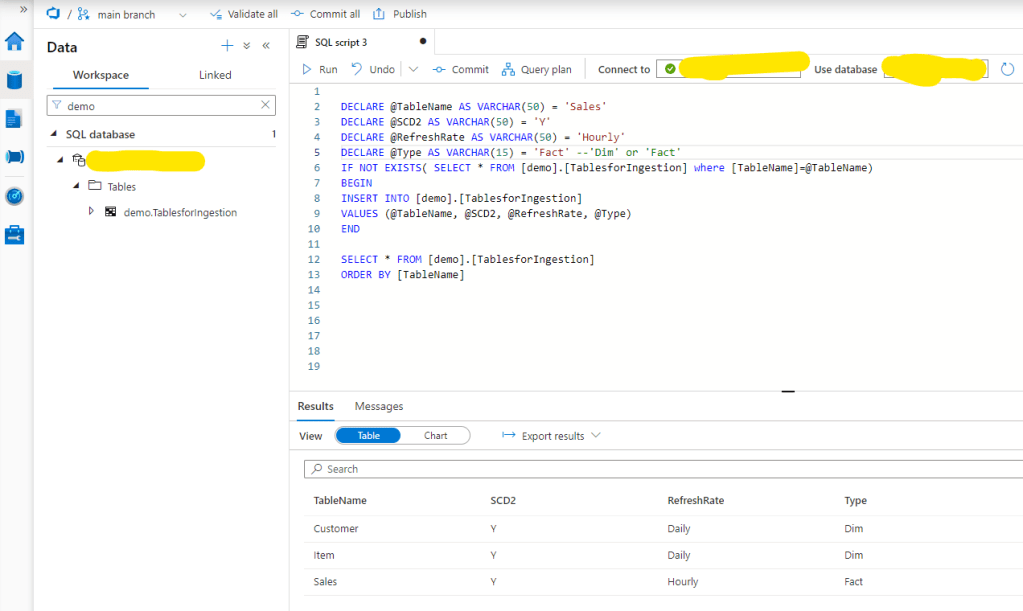
That’s it. Of course this is just the first steps. Moving forward several other activities might be needed, like
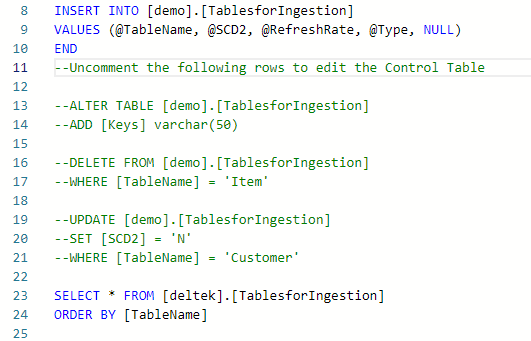
- Removing Tables
- Adding New Tables
- Modify attributes, like SCD is needed moving forward
- Adding new attributes, like Keys for the tables, etc.
For those actions I usually add a commented section that should only be uncommented to use the scripts quickly:
In my next article I’ll explain how we can utilize Control Table to create dynamic pipelines.

 Adam's Perspective on Data
Leave a comment